iPhone Customization in iOS 26: Liquid Glass Icons, Lock Screen and Shortcuts

iOS 26: What Changed for iPhone Customization
Key Takeaways: iOS 18 opened up the home screen with free-form icon placement, label removal and system-wide tinting. iOS 26 rebuilt the icons themselves out of Liquid Glass and added an all-clear look, separate light and dark tints, and a lock screen clock that resizes around your wallpaper. The Shortcuts app still enables fully custom app icons at a 1-2 second launch cost. Widgy still handles transparency effects and complex widget layouts. Each Focus Mode carries its own lock screen and home screen. Android retains advantages in launcher replacement.
Two releases matter here, and they did different jobs. iOS 18, released in September 2024, changed where things could go: icons no longer snapped to a rigid grid, labels could be switched off, and a single tint could be pushed across every icon. iOS 26 changed what those things are made of. Apple rebuilt app icons out of what it calls Liquid Glass, “a new translucent material that reflects and refracts its surroundings”, and attached a set of appearance controls to it (Apple).
The practical result is that the layout work you could do in iOS 18 still works exactly the same way, while the look of what you are arranging now has four settings behind it instead of two. This guide covers both layers, plus the third-party methods that remain useful, what is more trouble than it is worth, and where Android still has an edge.
Mastering the iOS 26 Home Screen: Icons, Widgets, and Free-Form Layouts
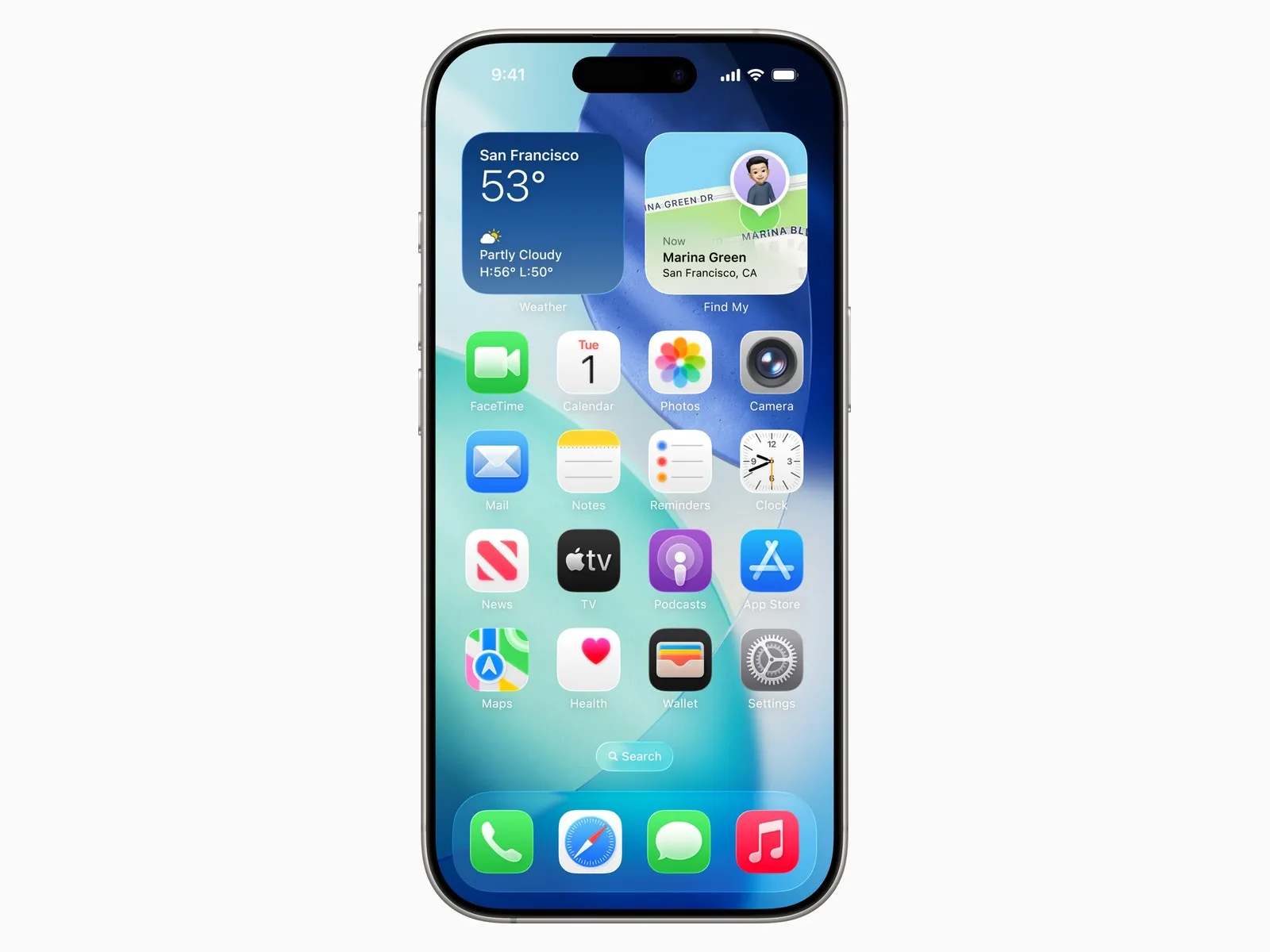
The iOS 26 home screen offers free-form icon placement, four icon appearance settings, label removal, and widget stacking, all available without any third-party app.
Free-Form Icon Placement
Prior to iOS 18, every app icon snapped to the top-left of the grid and filled in sequentially. That constraint is gone. To place icons freely:
- Long-press any blank area of the home screen to enter jiggle mode.
- Tap the Edit button (top-left) and select Customize.
- Drag any icon to a non-adjacent position, leaving deliberate gaps.
- Press Done to save the layout.
This single feature is what many users had been requesting since the original iPhone. A single-page layout with apps clustered at the bottom, leaving the top two-thirds for a wallpaper, is now trivially achievable.
Removing App Labels and Choosing an Icon Appearance
The Customize panel is where the appearance settings live, and iOS 26 expanded what it holds. iOS 18 offered two modes beyond the default, Dark and Tinted. Dark applies system-adaptive dark variants of app icons where developers have provided them. Tinted applies a single hue across all icons, which you control with a color picker. Labels can be switched off entirely for a cleaner look, and that still works the same way.
What iOS 26 adds is a consequence of the icons being rebuilt in layers of Liquid Glass, which Apple describes as giving them “a fresh new look in light, dark and tinted looks”. Three settings are worth knowing, all quoted from Apple’s own feature list for the release (Apple):
- Clear icons and widgets. An “all-clear glass look” for your icons. The glass itself can be set to a light or a dark appearance, or told to switch between the two automatically with Dark Mode. This is the setting with no equivalent before iOS 26.
- Light-tinted and dark-tinted. Tinting is now two distinct operations rather than one. A light tint applies your color to icon and widget backgrounds; a dark tint applies it to the glyphs and content against darker backgrounds. Either can follow Dark Mode automatically. In iOS 18 there was a single tint and no such split.
- Matched tinting. iOS can pull the tint color from your iPhone or an attached Apple case with MagSafe. Read the qualifier before planning around it: Apple states this is “available with select colors of iPhone, and with select colors of Apple cases with MagSafe”, so a given phone and case combination may simply not offer it.
The practical guidance from the iOS 18 era survives intact. Tinted icons still work best against a desaturated or monochrome wallpaper, and the appearance controls still reduce the need for the elaborate Shortcuts-based icon setups that dominated aesthetic communities between iOS 14 and iOS 17. Clear icons invert that advice: because the glass takes its color from what sits behind it, a busy wallpaper shows through every icon and the grid stops being scannable. A wallpaper with large areas of flat color is the one to pair it with.
Widgets: Stacking, Smart Rotation, and Sizing
Widgets arrived in iOS 14, and iOS 18 refined the stacking behaviour that is still in place. You can stack up to 10 widgets of the same size in a single slot and swipe between them. Smart Stack rotation uses on-device intelligence to surface the most relevant widget based on time, location, and usage patterns.
To add a stacked widget:
- Long-press the home screen and tap the plus (+) button.
- Add a widget of any size (small, medium, or large).
- Drag a second widget of the same size directly onto the first.
- A stack is created automatically. Tap the stack to reorder or enable Smart Rotate.
iOS 26 adds one option worth knowing at the widget level: the Photos widget can now show spatial scenes, the 3D-effect treatment Apple applies to still images, or display photos in full color on the home screen. It is the one widget change in this release that affects how a home screen looks rather than what it reports.
macOS customization guide for desktop theming ideas that complement your iPhone setup
Personalizing the Lock Screen: Wallpapers, Widgets, and Focus Pairings
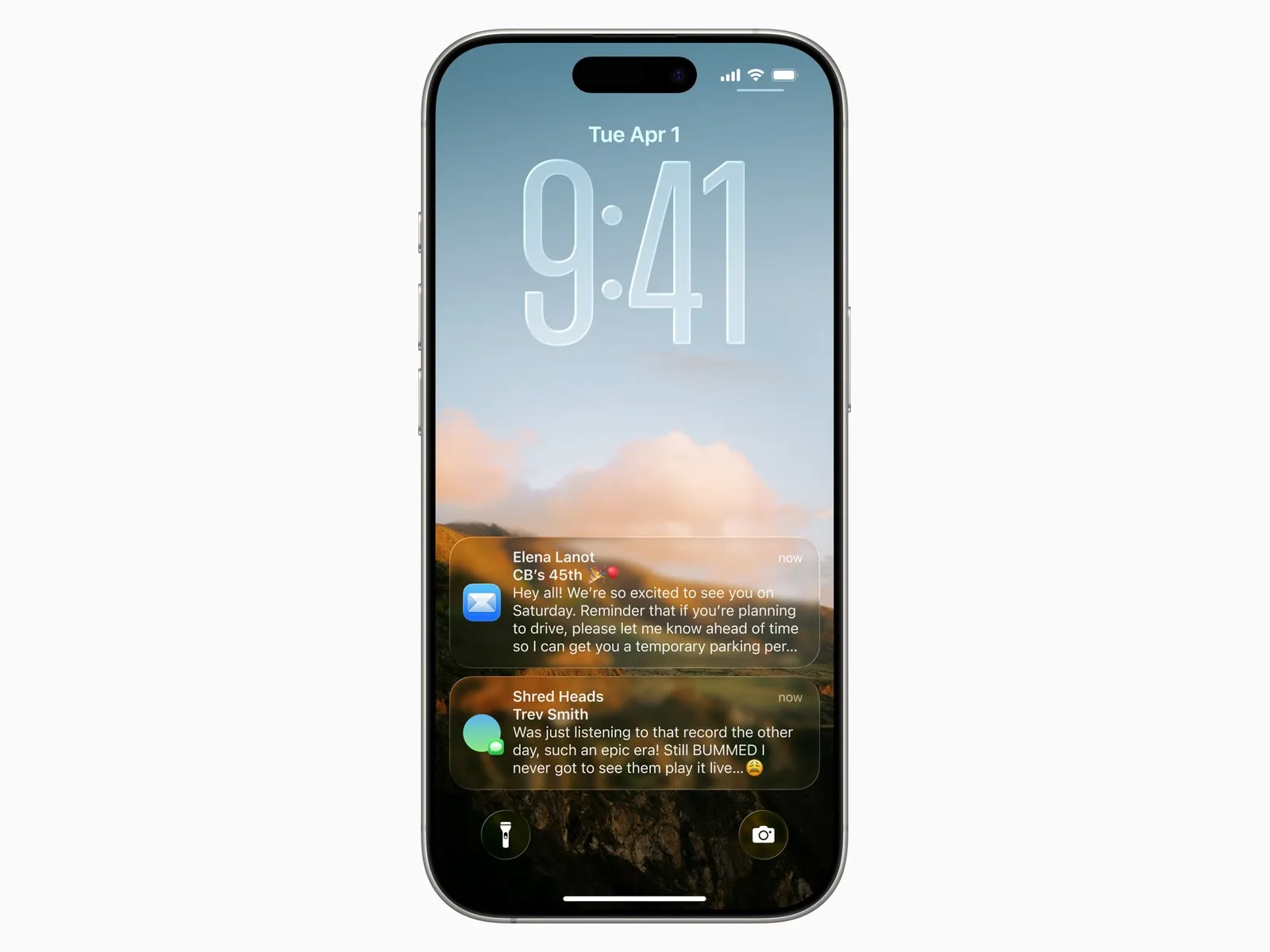
The lock screen received its biggest overhaul in iOS 16 and has gained options in every release since, making it a genuinely expressive surface rather than just a clock over a photo. iOS 26 adds one change here that alters how you should choose a wallpaper.
Adaptive Time. The clock is no longer a fixed block of text you position around. Apple’s description is that “the time dynamically adapts to your photo wallpaper and notifications, keeping your subject in view”, so the digits stretch, shrink and reflow to fill whatever space the image leaves. In practice this reverses the old workflow: instead of picking a photo with empty sky at the top so the clock has somewhere to sit, you can pick the photo you actually want and let the clock work around the subject. It also means the clock size you see while setting a wallpaper is not fixed, and will change as notifications arrive.
Setting Up a Custom Lock Screen
- Long-press the lock screen to open the wallpaper gallery.
- Tap the plus (+) to create a new lock screen, or tap Customize on an existing one.
- Choose a photo, gradient, emoji pattern, or one of Apple’s animated weather/astronomy options.
- Tap the clock to change its font and color from 8 font styles and a full color picker.
- Tap the widget areas above and below the clock to add up to 4 small widgets or 1 rectangular widget.
- Tap Add to save, then Set as Wallpaper Pair to also apply a coordinated home screen.
Available lock screen widgets include Calendar, Clock (for a second time zone), Weather, Fitness rings, Battery, and third-party options from apps like Fantastical and Carrot Weather.
Depth-Effect Wallpapers
Depth-effect wallpapers place the clock behind a foreground subject in a portrait photo. iOS detects the subject automatically using the same machine-learning segmentation that powers Portrait mode. Not every photo qualifies. If the effect is not offered, the subject either lacks sufficient contrast from the background or the image resolution is too low.
Pairing Lock Screens with Focus Modes
Focus is a feature introduced in iOS 15 that filters notifications by context. Each Focus can be assigned a dedicated lock screen and home screen, so switching from Personal to Work mode changes your entire visual environment automatically. This is one of the most underused features in iOS. Setting up three Focus-paired lock screens takes about 10 minutes and replaces the need for any third-party automation.
Advanced Customization: Shortcuts, Widgy, and Third-Party Apps
Beyond native tools, Shortcuts and third-party apps like Widgy enable custom app icons and advanced widget layouts.
Custom App Icons via Shortcuts
The Shortcuts app (built into iOS, no download required) lets you create a home screen bookmark that opens any app and displays a custom image as its icon. The process:
- Open Shortcuts and tap the plus (+) to create a new shortcut.
- Tap Add Action, search for “Open App”, and select the target app.
- Tap the shortcut name at the top, then Add to Home Screen.
- Tap the icon thumbnail and choose a photo from your library.
- Name the shortcut (this becomes the visible label), then tap Add.
The limitation is real and worth stating plainly: tapping the icon opens Shortcuts briefly before launching the app, adding roughly 1-2 seconds to every launch. Many users who set up elaborate custom icon grids between iOS 14 and iOS 17 eventually reverted because the friction accumulated over hundreds of daily taps. With the iOS 26 appearance settings covering tinting, clear glass and dark variants system-wide, the Shortcuts method is best reserved for a handful of icons where one specific image matters more than launch speed.
Widgy: Transparent and Custom Widgets
Widgy is a third-party widget app (free with in-app purchases) that supports transparency effects, custom fonts, and complex multi-element widget layouts that Apple’s native widget API does not allow. A transparent widget creates the illusion that the home screen wallpaper shows through the widget area, giving a floating-text effect. Achieving true transparency requires matching the widget background color to the wallpaper exactly, which Widgy automates with a wallpaper-capture tool.
Widgy works on iOS 14 and later. The learning curve is steeper than native widgets, but the visual payoff for aesthetic-focused setups is substantial.
Minimalist and “Dumb Phone” Approaches
An emerging niche in the customization community goes the opposite direction: stripping the iPhone down to a minimal surface to reduce the psychological pull of constant notification-checking and reflexive app-opening. Users who find themselves picking up their phone out of habit rather than intention use this approach to add deliberate friction. Apps like Dumb Phone (available on the App Store) replace the standard home screen with a text-only list of essential apps, mimicking the interface of devices like the Light Phone II. This is not a true launcher replacement (iOS does not permit that), but it functions as the default opening screen via a Shortcuts automation that triggers on unlock.
iPhone 16 Pro review and specs if you are choosing a new device to customize
iOS 26 vs. Earlier iOS Versions: What Changed and When
Customization arrived in pieces across several releases rather than all at once. The version history matters because not every iPhone runs the newest release, and a guide that assumes the latest will send half its readers looking for a setting their phone does not have.
| Feature | First Available | iOS Version | Notes |
|---|---|---|---|
| Home screen widgets | iOS 14 (2020) | 14.0+ | Small, medium, large sizes |
| Lock screen widgets | iOS 16 (2022) | 16.0+ | Above/below clock slots |
| Free-form icon placement | iOS 18 (2024) | 18.0+ | Grid gaps allowed |
| Icon tinting and dark icons | iOS 18 (2024) | 18.0+ | System-wide color picker |
| Label removal | iOS 18 (2024) | 18.0+ | Per home screen page |
| Focus-paired home screens | iOS 16 (2022) | 16.0+ | Per Focus mode |
| Interactive widgets | iOS 17 (2023) | 17.0+ | Tap actions without opening app |
| Clear icons and widgets | iOS 26 (2025) | 26.0+ | All-clear glass look, light or dark |
| Split light and dark tinting | iOS 26 (2025) | 26.0+ | Tint backgrounds, or tint glyphs |
| Matched tinting | iOS 26 (2025) | 26.0+ | From iPhone or MagSafe case color, select colors only |
| Adaptive Time on the lock screen | iOS 26 (2025) | 26.0+ | Clock reflows around the wallpaper subject |
The jump from iOS 13 to iOS 14 was the first major customization leap, iOS 18 the second. iOS 26 is a different kind of change: it added almost no new places to put things, and instead rebuilt how the things themselves are drawn.
Apple’s 2025 hardware announcements and what new iOS features to expect
iPhone (iOS 26) vs. Android: A Detailed Customization Comparison
While Android offers deeper system-level customization, iOS 26 narrows the gap, providing strong personalization options with greater consistency across supported devices.
The table below maps capabilities across both platforms.
| Capability | iPhone (iOS 26) | Android (varies by OEM) | Edge |
|---|---|---|---|
| Third-party launchers | Not supported | Fully supported | Android |
| Free-form icon placement | Yes (iOS 18+) | Yes (most versions) | Tie |
| Translucent/clear icon styling | System-wide (iOS 26) | Varies by launcher | Tie |
| System-wide font change | No | Yes (Samsung, others) | Android |
| Widget flexibility | Good (limited shapes) | Higher (KWGT, etc.) | Android |
| Icon tinting | System-wide, split light/dark (iOS 26) | Varies by launcher | Tie |
| Lock screen widgets | Yes (iOS 16+) | Varies | Tie |
| Custom app icons (native) | Via Shortcuts only | Via launcher directly | Android |
| Security and update consistency | Stronger, 5-6 years | Fragmented | iPhone |
Android wins on raw customization depth, particularly for users who want to replace the launcher entirely or apply system fonts. iPhone wins on consistency: the customization features work identically across every device that runs the release, rather than depending on which manufacturer’s skin is installed. The gap has narrowed meaningfully since iOS 14, and for most users who want a personalized but functional phone rather than a theming project, what ships natively is now sufficient.
Troubleshooting Common iPhone Customization Problems
Common customization issues, such as lock screen wallpaper bugs or shortcut icon reverts, have specific troubleshooting steps.
Lock Screen Wallpaper Won’t Change
This bug was documented on iOS 16.2 and has appeared in isolated reports on later versions. If tapping a new wallpaper in Settings > Wallpaper does not apply to the lock screen:
- Long-press the lock screen directly (not via Settings).
- Swipe to the affected wallpaper and tap Customize.
- Re-select the photo and tap Done, then Set as Wallpaper Pair.
- If the issue persists, restart the iPhone and repeat.
Custom Shortcut Icons Reverting
If Shortcuts-based icons lose their custom image after an iOS update, the shortcut itself is intact but the home screen bookmark may have lost its association. Delete the bookmark from the home screen and re-add it from the Shortcuts app using the Add to Home Screen option.
Widgets Showing “Loading” Indefinitely
This typically indicates a background app refresh issue. Go to Settings > General > Background App Refresh and confirm it is enabled for the relevant app. If the widget belongs to a third-party app like Widgy, force-quit the app and re-add the widget.
Tinted Icons Appearing Inconsistent
Not all developers have submitted dark or tinted icon variants to Apple. When a tinted icon variant is missing, iOS applies an automatic tint to the original icon, which can look washed out. There is no user-side fix. The only option is to use the Shortcuts method to assign a custom image for that specific app.
Halide Mark II review for shooting the custom wallpaper photos your setup deserves
Aesthetic Ideas: Four Setups Worth Trying
Explore four practical customization setups: Minimal Monochrome, Productivity Dashboard, Aesthetic Photo Grid, and Dumb Phone Mode.
Minimal Monochrome: One home screen page, all icons tinted to a single neutral (warm grey or slate), labels off, a single large clock widget at the top, and a high-contrast black-and-white photo wallpaper. Takes about 15 minutes to configure entirely in iOS 26 with no third-party apps.
Productivity Dashboard: Two home screen pages. Page one holds a large calendar widget (Fantastical or Google Calendar), a medium Reminders widget, and a small Weather widget. Page two holds all apps in a compact grid. App Library handles everything else. Focus modes switch between pages automatically.
Aesthetic Photo Grid: Widgy transparent widgets layered over a portrait photo wallpaper, with app icons reduced to a single dock row. Requires Widgy and about 30 minutes of setup. The visual result is closer to a custom Android launcher than anything Apple provides natively.
Dumb Phone Mode: Dumb Phone app set as the first screen via a Shortcuts unlock automation, showing only 6-8 essential apps as text labels. All social media apps moved to the App Library with no home screen presence. Screen Time limits applied to any app not on the essential list.
Image credit: iOS 26 home screen and lock screen, from Apple’s WWDC 2025 press materials, used for editorial illustration. Feature descriptions and quoted wording are taken from Apple’s own iOS 26 feature list, published September 2025.
Frequently Asked Questions
Can you change app icons on iPhone without the Shortcuts app?
In iOS 26, you can tint all icons a custom color, switch them to a dark palette, or give them an all-clear glass look directly from the home screen Customize panel, no Shortcuts required. For fully individual custom icons, the Shortcuts app remains the only native method. Third-party apps like Widgy do not replace icons but extend what widgets can display.
Can you place apps anywhere on the iPhone home screen?
Yes, on iOS 18 and later. Free-form icon placement means you can leave deliberate blank spaces between apps, which was not possible before that release. Long-press any icon, tap Edit, and drag icons wherever you want on the grid.
Why won’t my iPhone lock screen wallpaper change after an iOS update?
This is a documented bug that surfaced for some users on iOS 16.2 and has reappeared in minor form on later point releases. The fix is to long-press the lock screen, swipe to the affected wallpaper, tap Customize, re-select the photo, and save. A full restart resolves the issue in most cases.
How do Focus Modes affect lock screen customization?
Each Focus Mode (Work, Personal, Sleep, etc.) can be paired with a unique lock screen and home screen. Switching a Focus automatically swaps your wallpaper, widgets, and visible app pages. Set this up in Settings > Focus, then select a Focus and tap Customize Screens.
Is iPhone customization as flexible as Android?
Android still leads on third-party launcher support and system-wide theming. iOS has closed the gap considerably with free-form layouts, the iOS 26 icon appearance settings, and per-Focus home screens, but you cannot replace the default launcher or apply system-wide font changes on iPhone without jailbreaking.
Recommended reading

Transfer Photos from iPhone to Mac Without Wrecking the Originals
Six ways to transfer photos from iPhone to Mac, compared on speed, quality and reliability. Covers Image Capture, AirDrop, iCloud, and keeping HEIC files as the iPhone stored them.

How to Recover iPhone Data, With or Without a Backup
Learn how to recover iPhone data from iCloud, iTunes, third-party software, or professional services, including when no backup exists or the device is broken.

Transfer iPhone Music to Mac: Why No Single Apple Method Covers Everything
Learn how to transfer iPhone music to Mac using Finder, iCloud, AirDrop, and third-party tools. Free and paid options covered with step-by-step instructions.