How to copy DVD into Mac and make copies of DVD

Mar 11, 2013 12:12 pm / Posted by Nelson Peter to DVD CategoryFollow @MacDVD_Studio
This step by step guide is mainly about how to copy DVD into Mac (Copyright protected DVD included) and copy DVD to another blank DVD for backup on Mac with DVD Copy Pro for Mac. To learn more about DVD Copy Pro for Mac, you can visit this side by side review.
If you are windows user, you can follow this step by step guide to make a copy of DVD.

Step 1: Download and install DVD Copy Pro for Mac.
 |
 |

Step 2: Select DVD Copy Method
After inserting DVD, the main interface will turn around. And you can see the DVD whole contents in the menu list. If you insert a D9 disc, you can choose the "D9 to D5 compression option" to burn DVD9 disc to DVD5 disc. Click DVD Disc in output options to burn DVD to the blank disc. Besides, you can also copy DVD to DVD folder (Video_TS), DVD media format or DVD ISO file. After all things done, click Start button to go to the next step.
Step 3: Finish the DVD Settings
After clicking start button, you need to type in the DVD name for the new copy disc. And you also need to choose optical driver to burn the disc if there is more than one driver on your computer. You can also customize the copy speed and copy quantity according to your own need.

Step 4: Start Copying DVD
When the setting finished, DVD Copy Pro for Mac will start copying DVD and save the data to a temperate file. After burning, the program starts encoding DVD and will inform you to insert a suitable blank DVD disc.
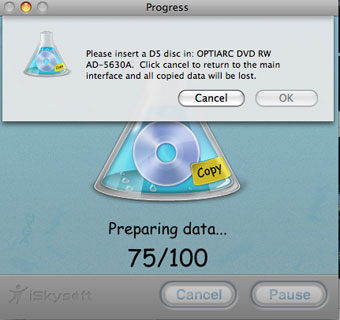
Then you can surf website or listen to the music and check icon progress strip sometimes. The program will inform you the completion of burning later.

Now you can enjoy your DVD movies with new disc and save the other one as collector's edition.